
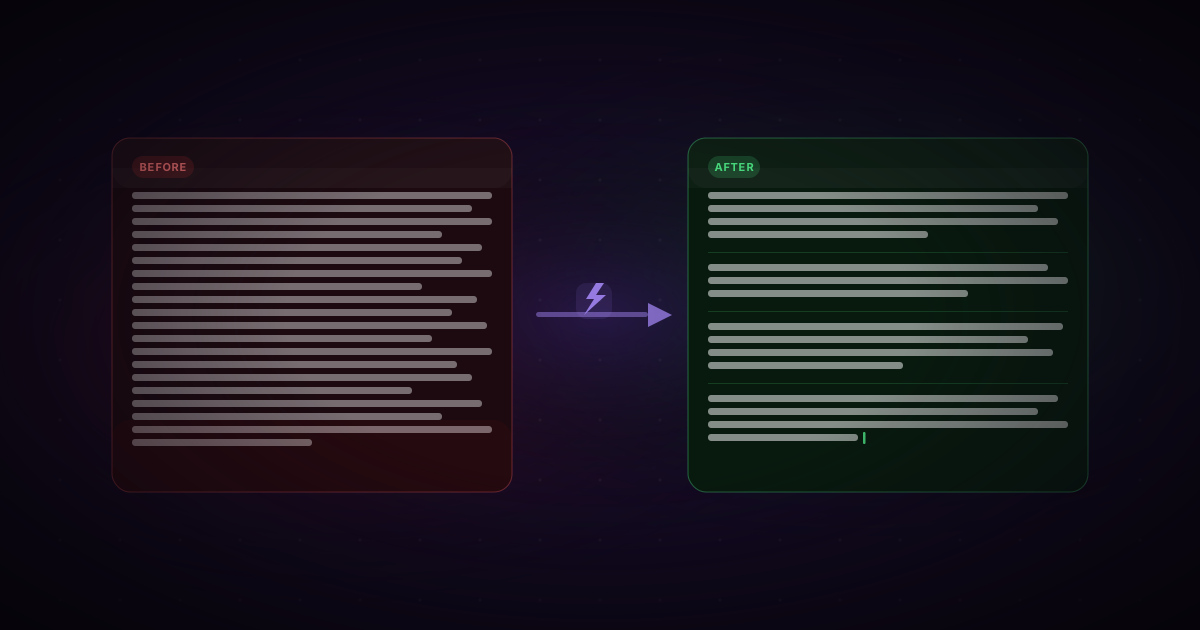
Want to add text to multiple video descriptions? YouTube Studio's bulk edit tool automatically removes newlines, turning descriptions into unreadable walls of text. Thankfully, there's a workaround. In this article, I'll show you the three steps to preserve newlines in bulk edits and keep your descriptions properly formatted.
Contents
- Bulk editing in YouTube Studio
- The problem with newlines in YouTube Studio
- YouTube description newline hack (step-by-step)
- Should you use this newline hack?
Bulk editing in YouTube Studio
When you have dozens of video descriptions to update, YouTube Studio includes a bulk edit feature that helps in some cases.
Although there's no find and replace option, you can:
- Insert at beginning: inserts the given text at the start of every description.
- Insert at end: inserts the given text at the end of every description.
So if you want to make basic description edits in bulk—like adding affiliate links, promotion links, or disclaimers— it seems like YouTube Studio has the answer.
But there's one design flaw that makes the feature unusable.
The problem with newlines in YouTube Studio
Imagine you want to add a product link to the end of multiple descriptions.
🚀 Build your own app with step-by-step guides: https://tomgregory.com
These descriptions already contain text, so naturally we want to include space before the promo link.
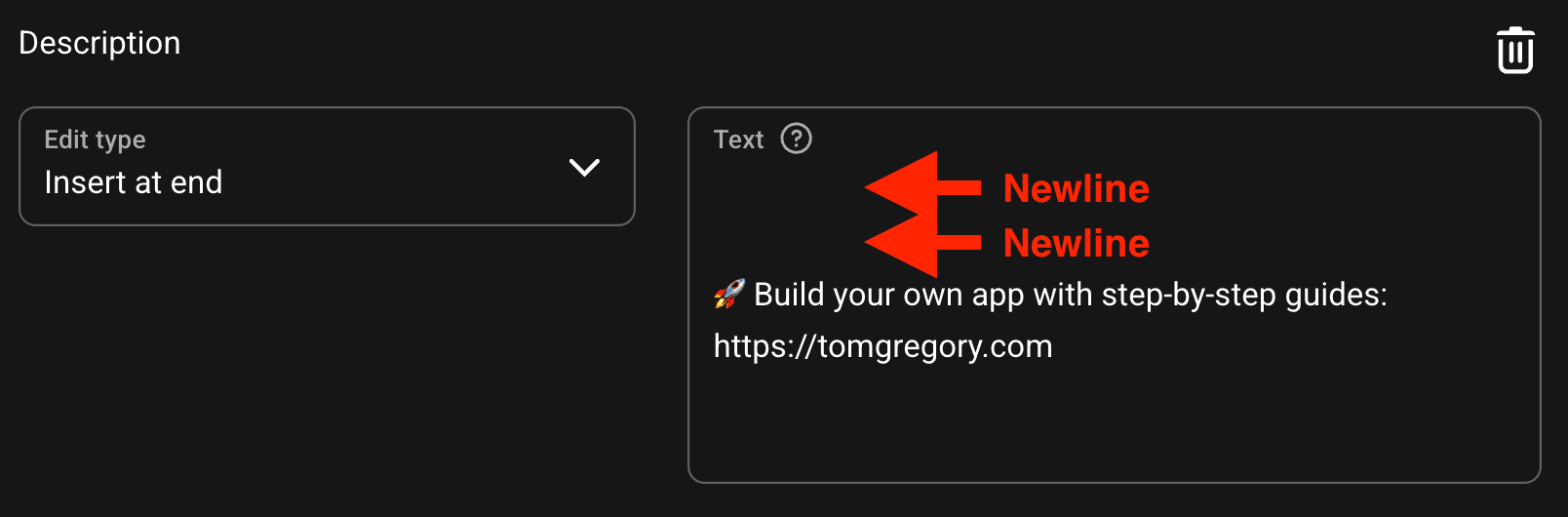
So in YouTube Studio's bulk edit tool, we add a couple of newlines / link breaks:
When we apply this change to the selected videos, guess what happens?
The descriptions include the new text at the end, but without the newlines. The new text gets added right at the end of what's already there.
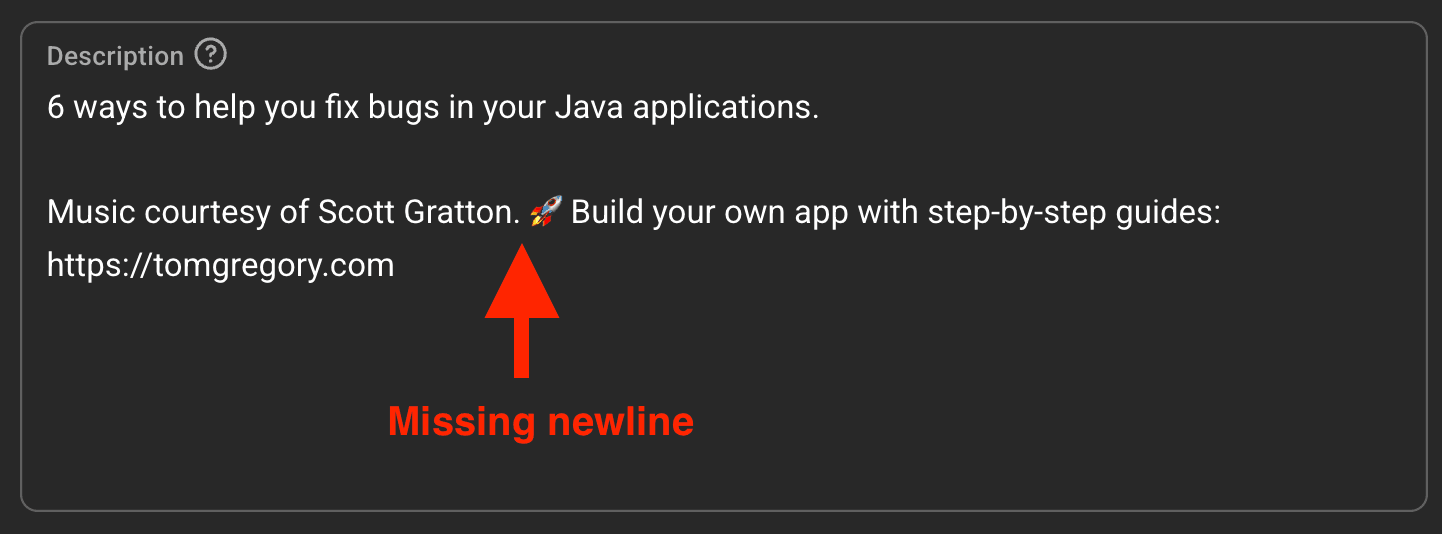
Obviously this makes our new link way less readable.
Whatever kind of text you want to insert, there's a way to get around this annoying behaviour with just a few extra steps.
YouTube description newline hack (step-by-step)
These are the steps to preserve newlines when bulk editing descriptions. I suggest first practising them on a single video before making updates across your whole channel.
Step 1: Insert text as before, but with a twist
Type whatever text you want to insert into the text box like before. This time, also include a special placeholder that'll stop YouTube Studio deleting newlines.
- Insert at beginning: add newlines after your text, then the placeholder.
- Insert at end: add the placeholder before your text, then newlines.
For the placeholder, choose any word that doesn't appear elsewhere in your video descriptions. I recommend simply 'placeholder'.
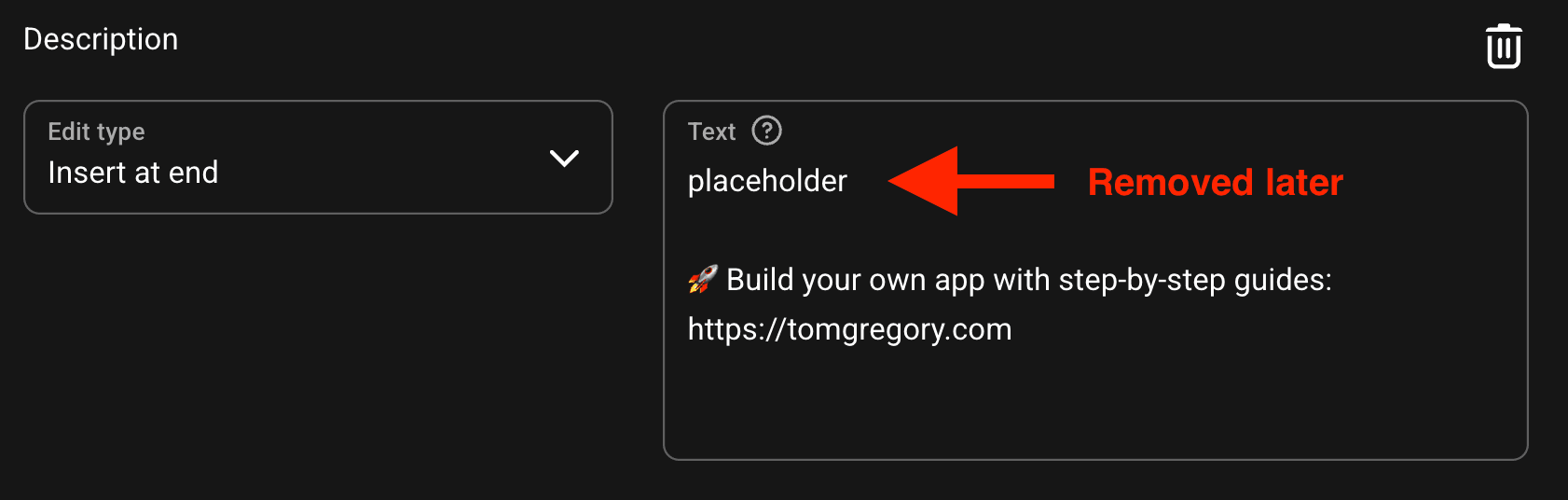
The reason we need this placeholder will become clear in the next steps.
Step 2: Apply the update and review
Apply the update to your selected videos.
Now review one of the descriptions. Hopefully you see that by including the placeholder text, the newline has been preserved.
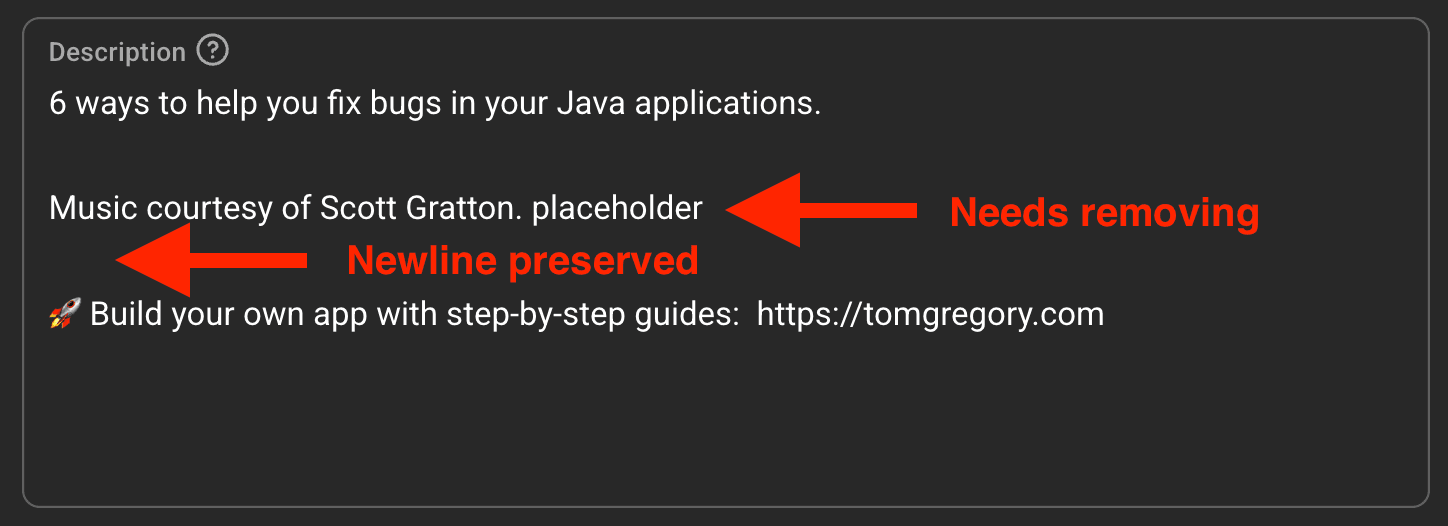
That's almost exactly what we want—except for the extra placeholder text. So let's fix that.
Step 3: Remove the placeholder
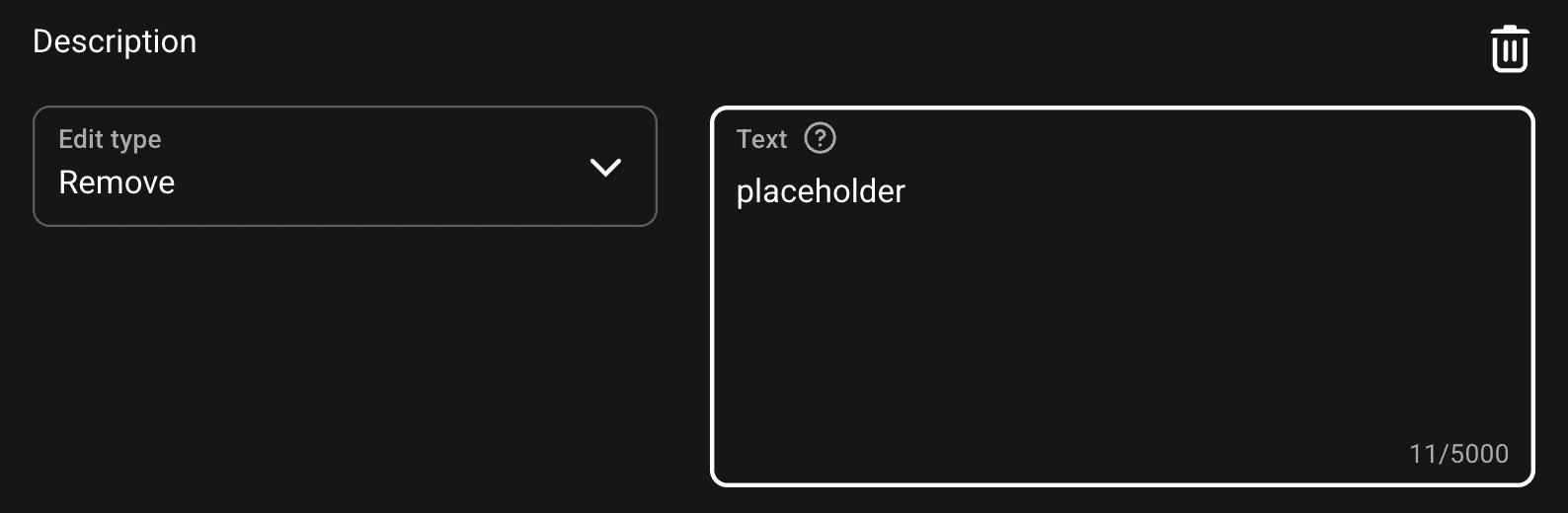
Bulk edit the same descriptions again, but now choose an edit type of Remove.
This simply removes any instance of the text across all your descriptions. That's why it's so important for the placeholder not to appear elsewhere.
Enter placeholder in the text box and apply the change.
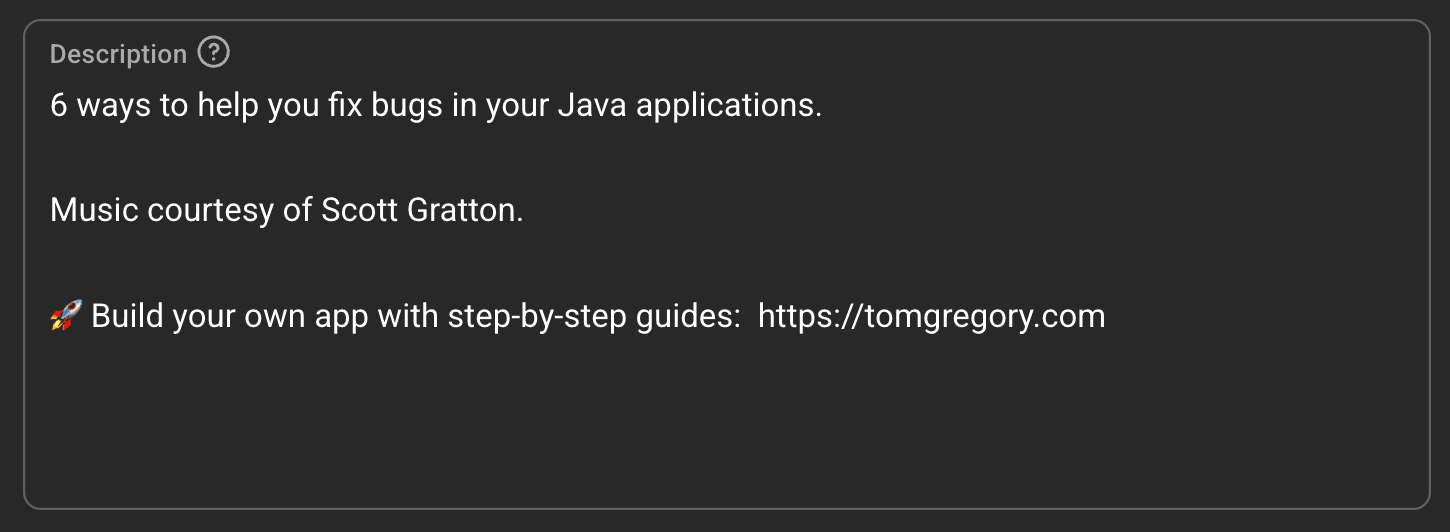
Now your video descriptions should contain just the newlines and your new text—no placeholder. Job done!
Should you use this newline hack?
If you want to add text at the start or end of your descriptions, then this workaround helps you do that in YouTube Studio with proper formatting.
For more advanced bulk edit tasks, like replacing text in the middle of descriptions, YouTube Studio won't help.
You can make the change manually across multiple videos or use a dedicated bulk edit tool to do it automatically. To learn whether this approach could save you time, check out this comparison of all the major bulk edit tools.