
Not every creator wants to buy expensive software just to update a few video descriptions. Well did you know YouTube Studio can do bulk edits across your entire channel for free? The only catch is it has limited features and might not process every video at once. In this article, you'll learn how to use bulk edits in YouTube Studio and when it's the right choice over other tools.
Contents
- Why bulk edit video descriptions?
- YouTube Studio's 'Make bulk changes to videos' feature
- Bulk editing descriptions in YouTube Studio step-by-step
- Limitations of YouTube Studio for bulk editing
- Bulk editing in YouTube Studio vs. other tools
Why bulk edit video descriptions?
Image your channel has several hundred videos.
Every video has a unique description, but there's one text snippet that's always the same. When it needs updating, you have to change every single description—not a small task.
Editing descriptions in bulk is something creators need when updating:
- Affiliate links: links to related products—such as camera gear, travel kit, or books—that viewers might want to buy.
- Promotion links: links to your own products that solve viewers' problems.
- Disclaimer text: copyright or other text added to descriptions to avoid claims and disputes.
Bulk editing means updating every video description in the same way. Just like how you find and replace text across an entire Google Doc, you might need to do the same thing across your entire video catalogue.
That's not a big problem for a few videos—just edit the video details manually in YouTube Studio. But for dozens of videos or more, editing by hand is slow, tedious, and error-prone.
That's why many creators prefer to automate the process, using bulk edit tools to get the job done faster and more accurately.
YouTube Studio's 'Make bulk changes to videos' feature
As soon as you select a video within YouTube Studio's Content view, you get access to the bulk edit feature.
It supports bulk updating all kinds of fields, not just video descriptions: titles, tags, visibility, and more. For the full list, see read the Google documentation.
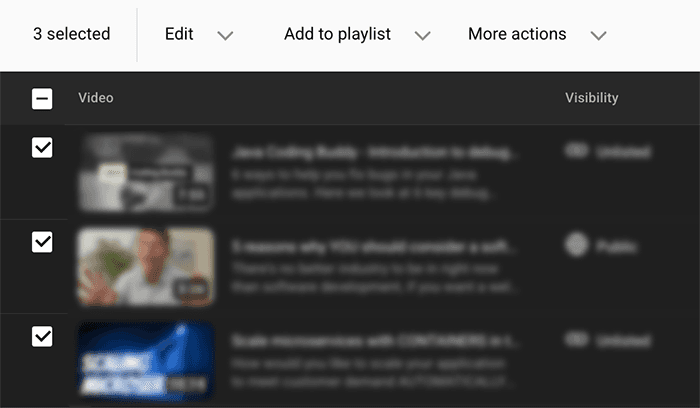
Bulk editing descriptions is just a subset of the entire bulk edit feature. Since it's not well documented, not everyone knows it exists. It took several years using YouTube Studio myself before discovering the feature, but I was glad I did.
Could this feature save you time? Let's now learn exactly how it works.
Bulk editing descriptions in YouTube Studio step-by-step
Since you're a creator, you already have access to YouTube Studio and the bulk edit feature contained within.
So to update multiple video descriptions, just follow these steps.
1. Go to the Content tab
Select Content in the left-hand navigation menu.
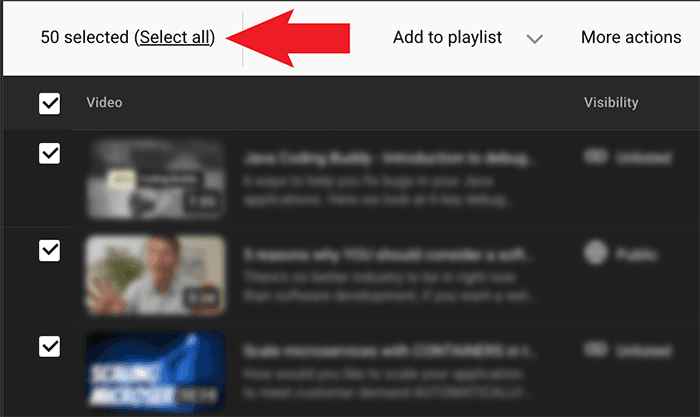
2. Select which videos to update
You have three options:
- Individual videos by selecting the corresponding checkboxes.
- All videos on page by selecting the top checkbox.
- All videos on channel by selecting the top checkbox, then Select all.
3. Choose edit type
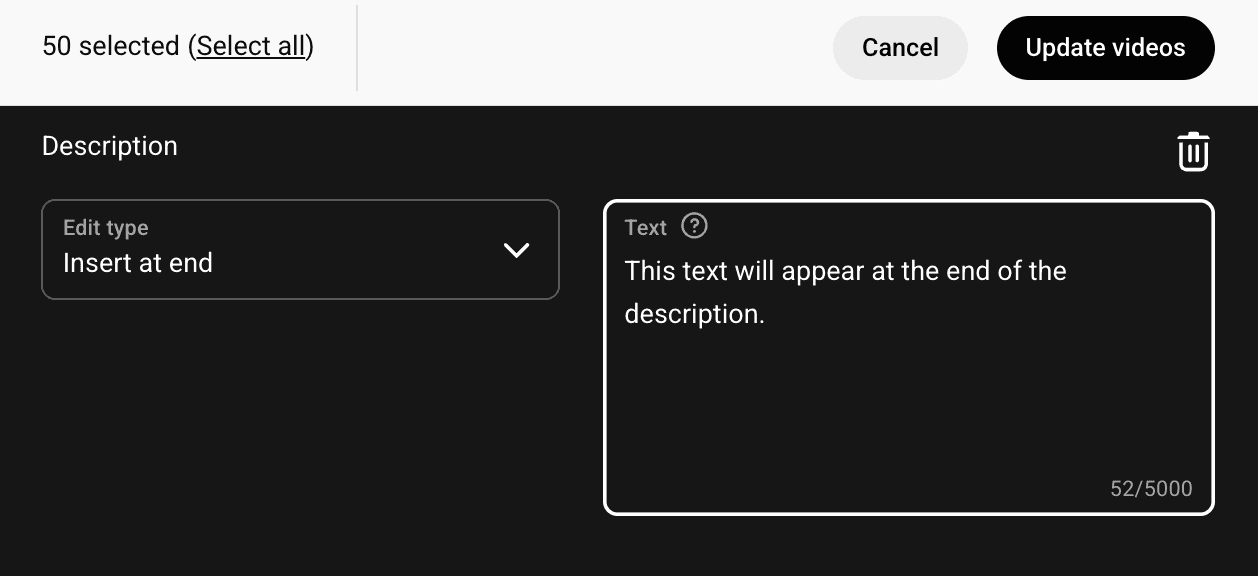
From the top menu, select Edit then Description.
The drop dow that appears offers several Edit types, each operating on the provided text.
Choose one of:
- Insert at beginning: inserts the text at the start of the description.
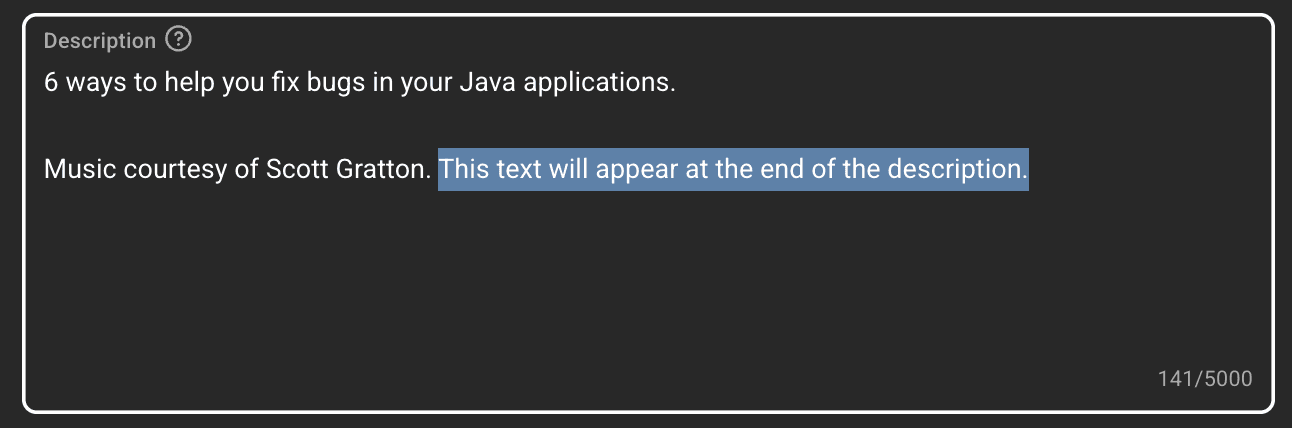
- Insert at end: inserts the text at the end of the description.
- Replace all: replaces the entire description with the text.
- Remove: removes the text wherever it appears in the description
4. Enter text
The text you enter here is used differently depending on the edit type.
5. Select Update videos
When you're ready, select the Update videos button and confirm your choice.
6. Wait for the update to complete
YouTube Studio begins bulk updating descriptions. You can navigate away from this page and it'll keep running in the background.

If you're on the same page when the task completes, you'll see a successfully updated message. Check your descriptions and you'll see they've been updated. Job done!
Limitations of YouTube Studio for bulk editing
Although it's great that bulk editing exists within YouTube Studio, editing descriptions itself is very limited.
Here are the biggest issues I've encountered:
- No find and replace: this essential use case is currently unsupported. A partial workaround is to remove, then insert at end, but this doesn't cover every scenario.
- Ignores newlines: when you insert text at the beginning or end of a description, newlines are removed, messing up formatting. A workaround to keep newlines does exist, but it does slow down the process.
- Can't select videos across pages: YouTube Studio shows max. 50 videos per page. If you want to make bulk edits to specific videos across different pages, you need to apply the change once per page.
- No preview: you can't preview descriptions before the change is made, increasing the risk of making a mistake.
Bulk editing in YouTube Studio vs. other tools
The main benefit of bulk editing descriptions in YouTube Studio is you're using the tool you already use to upload videos—and it's free.
So when should you choose YouTube Studio? I'd say when you only need very basic edits (the four edit types given above). Even if your use case is supported, you might find using the tool frustrating as you repeat the same bulk operation across multiple pages of videos.
For most situations, I recommend a dedicated tool for bulk editing. These normally allow you to target specific videos, do a true find and replace, and see a preview, helping you perform bulk edits reliably every time.
To help you pick the tool that'll work reliably for you, here's a comparison of the best bulk edit tools available today.